Table of Contents
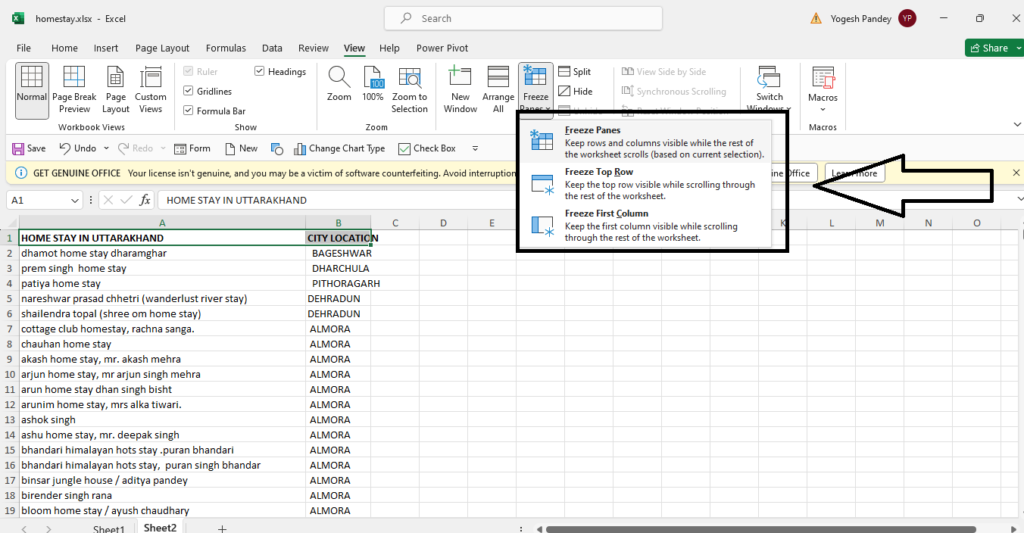
ToggleTo freeze panes in Excel, follow these steps:
For example, if you want to freeze the top row and the first column, select cell B2, then go to the “View” tab, click on “Freeze Panes”, and choose “Freeze Panes”. This action will freeze the top row and the first column, so when you scroll down or to the right, those frozen rows and columns will remain visible.
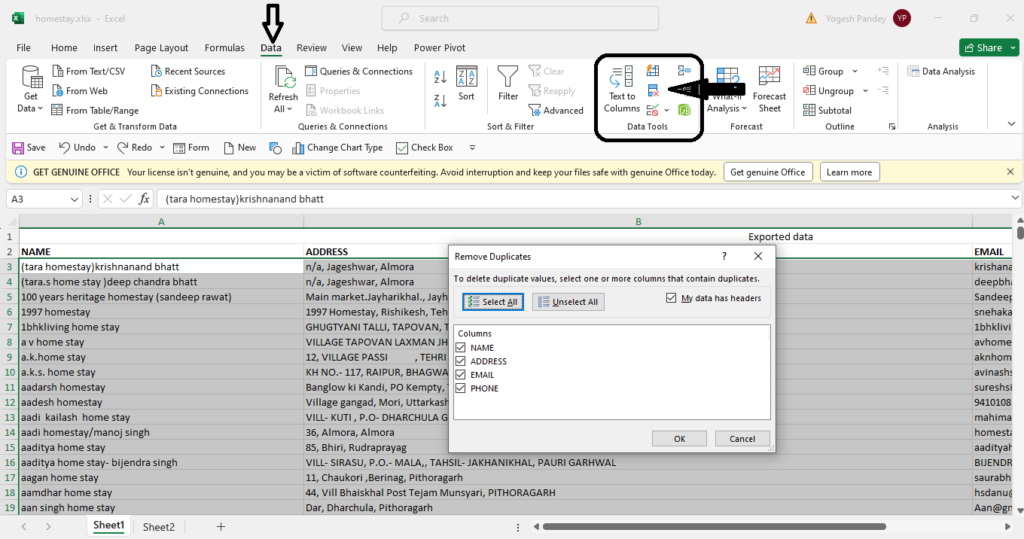
To remove duplicates from a dataset in Excel, you can use the built-in “Remove Duplicates” feature. Here’s how:
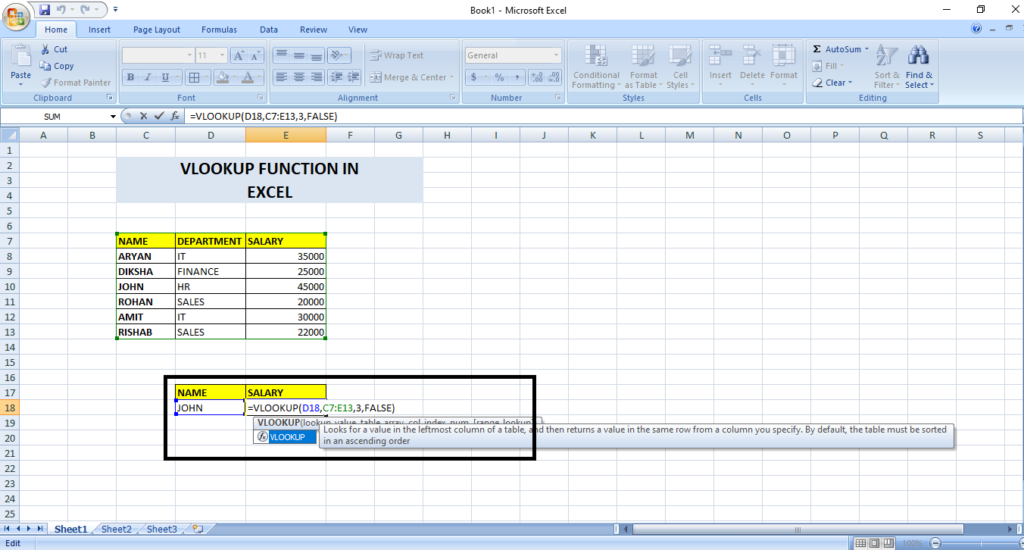
The VLOOKUP function in Excel is used to search for a value in the first column of a range (table) and return a value in the same row from a specified column. It stands for “Vertical Lookup.”
Here’s how it works:
Syntax:
The basic syntax of the VLOOKUP function is:
=VLOOKUP(lookup_value, table_array, col_index_num, [range_lookup]).
Parameters:
lookup_value: The value you want to search for.
table_array: The range of cells that contains the data. The first column of this range is searched for the lookup_value.
col_index_num: The column number in the table_array from which to retrieve the matching value.
range_lookup: Optional parameter. If set to TRUE or omitted, it assumes the closest match. If set to FALSE, it looks for an exact match.
Example:
Suppose you have a table with employee names in column A and their corresponding salaries in column B. If you want to find the salary of an employee named “John,” you could use the formula:
=VLOOKUP(“John”, A1:B10, 2, FALSE)
This formula will search for “John” in the first column of the range A1:B10 and return the value from the second column (salary).
Overall, the VLOOKUP function is handy for looking up and retrieving information from large datasets, such as databases or tables, based on a specific criterion.
In summary, CONCATENATE is the traditional method of concatenating strings, while CONCAT offers a more concise and versatile approach, especially for handling larger datasets or arrays of values.
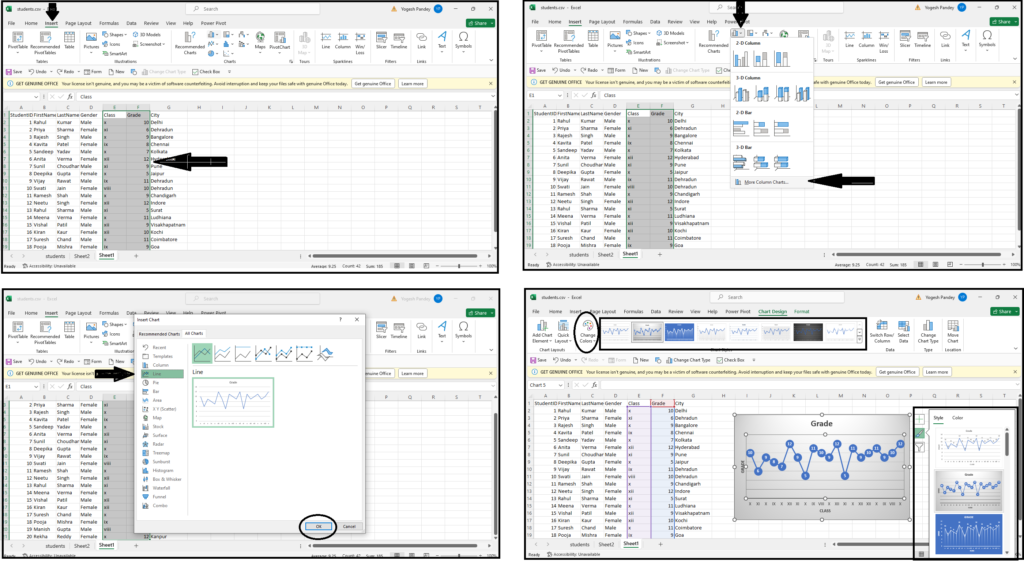
To create a chart or graph in Excel, follow these steps:
1. Select Data: Highlight the data you want to include in the chart. This could be a range of cells or a table.
2. Insert Chart: Go to the “Insert” tab on the Excel ribbon.
Choose Chart Type: Click on the type of chart you want to create from the “Charts” group. Common types include column, bar, line, pie, and scatter.
3. Customize Chart: Excel will insert a default chart based on your selected data. You can customize the chart by adding titles, axes labels, legends, and more. Right-click on any element of the chart to access formatting options.
4. Move and Resize: Click and drag the chart to move it to a different location on the worksheet. Resize by clicking and dragging the corners or edges of the chart.
5. Chart Tools: When you select the chart, the “Chart Tools” contextual tab will appear on the Excel ribbon. Use this tab to further customize the chart with design options, layout options, and chart styles.
6. Switch Data: If you want to change the data range used by the chart, click on the chart, and then click on the “Design” tab under “Chart Tools.” In the “Data” group, click on “Select Data” and update the data range as needed.
7. Refresh Data: If your source data changes, you may need to refresh the chart to reflect those changes. Right-click on the chart and select “Refresh” or click on the “Refresh Data” button in the “Data” group under “Chart Tools.”
By following these steps, you can create a chart or graph in Excel to visually represent your data and make it easier to understand and analyze.
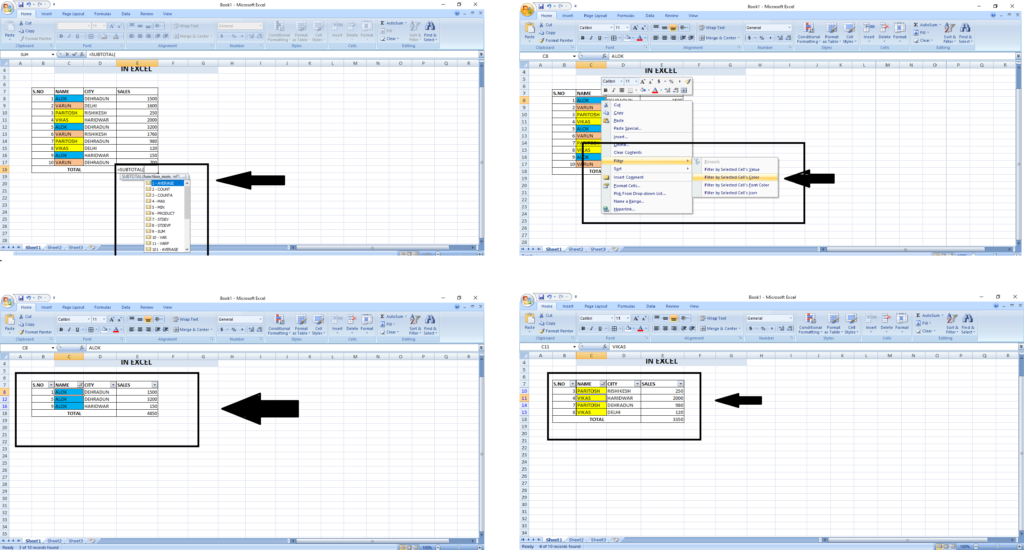
The SUBTOTAL function in Excel is used to perform calculations on a filtered range or dataset, excluding other subtotal results. It’s often used in conjunction with filtered lists or tables to calculate results dynamically.
=SUBTOTAL(function_num, ref1, [ref2], ...)
function_num: A number that specifies which function to use for the calculation (e.g., 1 for AVERAGE, 2 for COUNT, 9 for SUM, etc.).
ref1, ref2, …: References to the ranges or cells you want to include in the calculation.
Example: Suppose you have a list of numbers in cells A1:A10, and you’ve filtered out some of the rows. If you want to sum only the visible (filtered) numbers, you can use:
=SUBTOTAL(9, A1:A10)
Here, “9” represents the SUM function, and A1:A10 is the range of numbers. The SUBTOTAL function will calculate the sum of only the visible (filtered) numbers in the range.
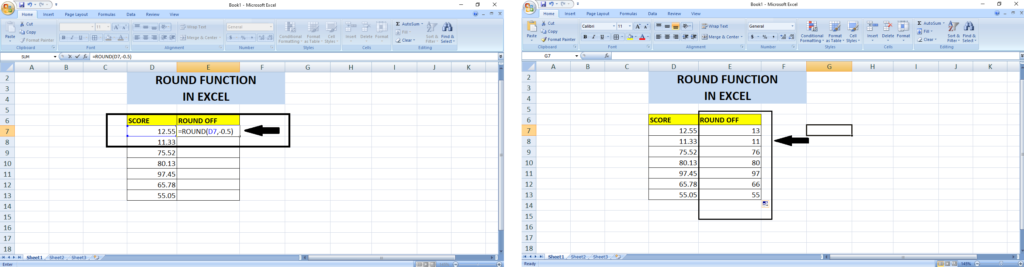
The purpose of the ROUND function in Excel is to round a number to a specified number of digits. It allows you to control the precision or formatting of numerical values.
=ROUND(number, num_digits)
number: The number you want to round.
num_digits: The number of digits to which you want to round the number. If positive, it rounds to the right of the decimal point; if negative, it rounds to the left of the decimal point.
Example: Suppose you have a number 3.4567 in cell A1, and you want to round it to two decimal places. You can use:
=ROUND(A1, 2)
This formula will round the number to 3.46.
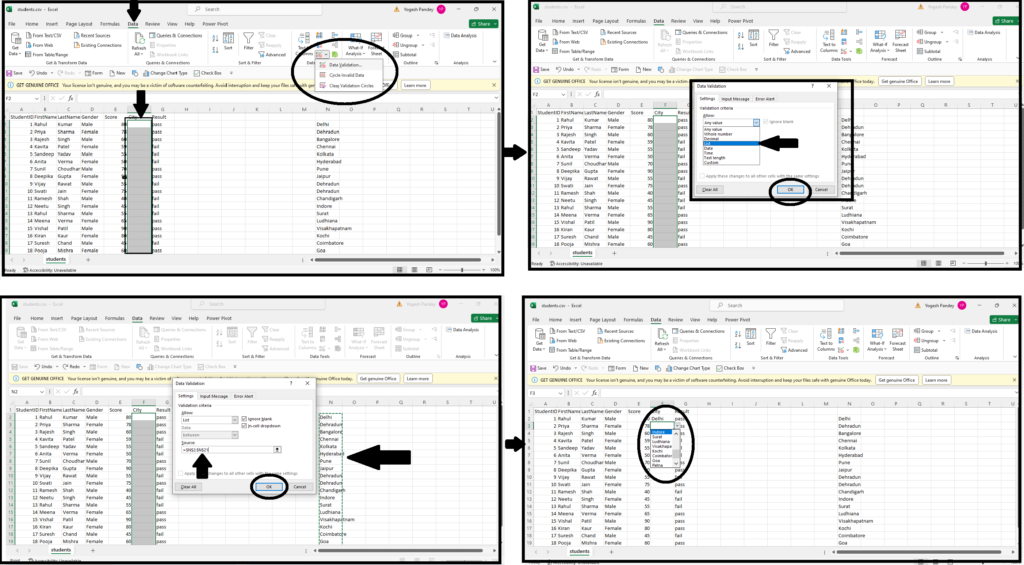
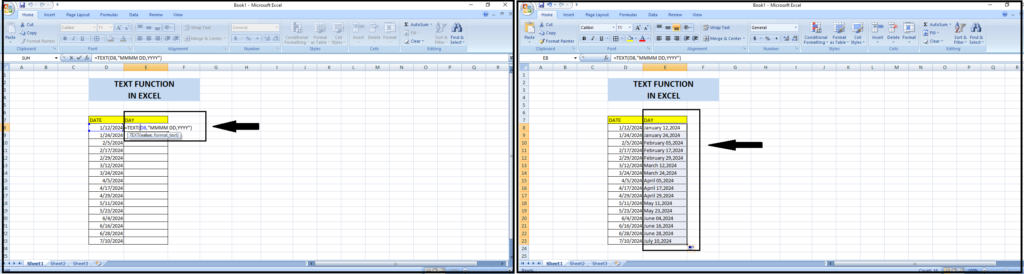
The TEXT function in Excel is used to convert a numeric value into text with a specified format. Here’s how to use it:
=TEXT(value, format_text)
value: The numeric value you want to convert to text.
format_text: The format you want to apply to the text.
Example: Suppose you have a date in cell A1 (e.g., 01/15/2024), and you want to display it as “January 15, 2024”. You can use:
=TEXT(A1, "mmmm dd, yyyy")
This formula will convert the date into text with the specified format.
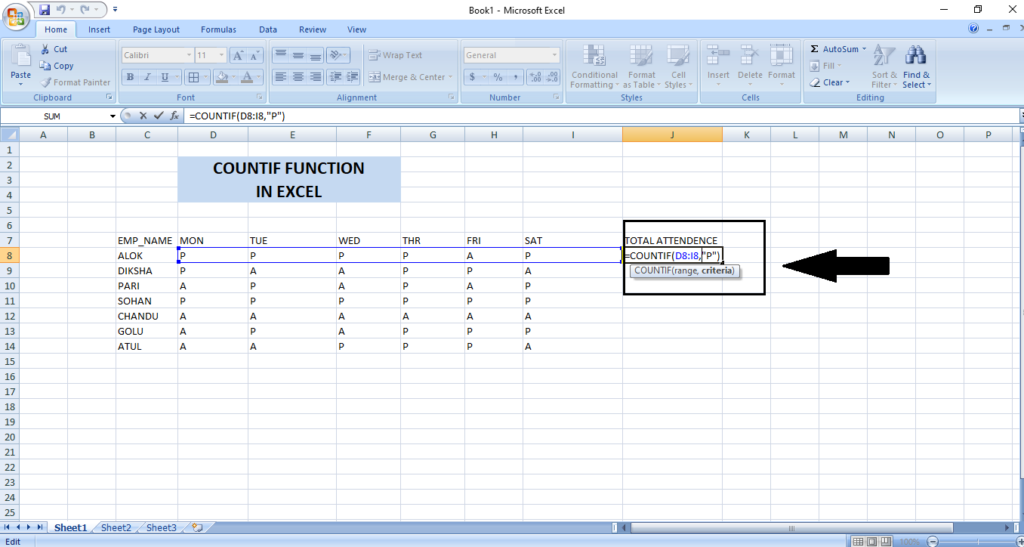
The purpose of the COUNTIF function in Excel is to count the number of cells within a range that meet a specified condition or criteria.
=COUNTIF(range, criteria)
range: The range of cells you want to count.
criteria: The condition or criteria that determines which cells to count.
Example: Suppose you have a list of numbers in cells A1:A10, and you want to count how many of them are greater than 50. You can use:
=COUNTIF(A1:A10, ">50")
This formula will count the number of cells in the range A1:A10 that are greater than 50.
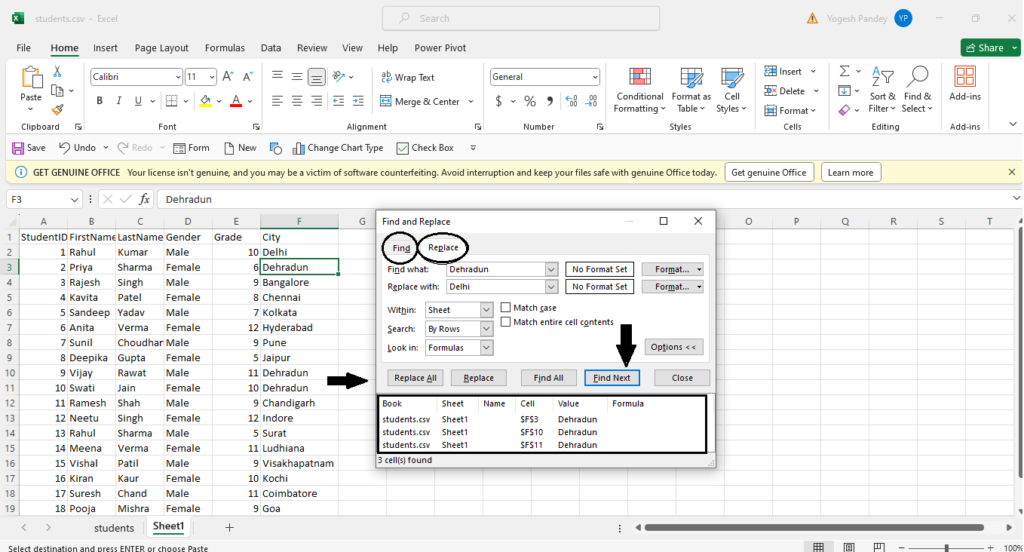
The purpose of the NETWORKDAYS function in Excel is to calculate the number of working days (business days) between two dates, excluding weekends (Saturday and Sunday) and optionally, specified holidays.
=NETWORKDAYS(start_date, end_date, [holidays])
start_date: The start date of the period.
end_date: The end date of the period.
holidays: Optional. A range of dates representing holidays to exclude from the calculation.
Example: Suppose you want to calculate the number of working days between January 1, 2024, and January 15, 2024, excluding the holidays listed in cells A1:A5. You can use:
=NETWORKDAYS("2024-01-01", "2024-01-15", A1:A5)This formula will return the number of working days between the specified dates, excluding weekends and the holidays listed in the range A1:A5.
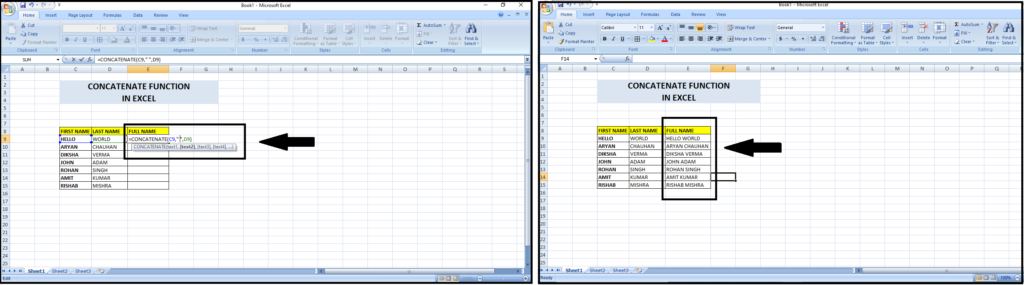
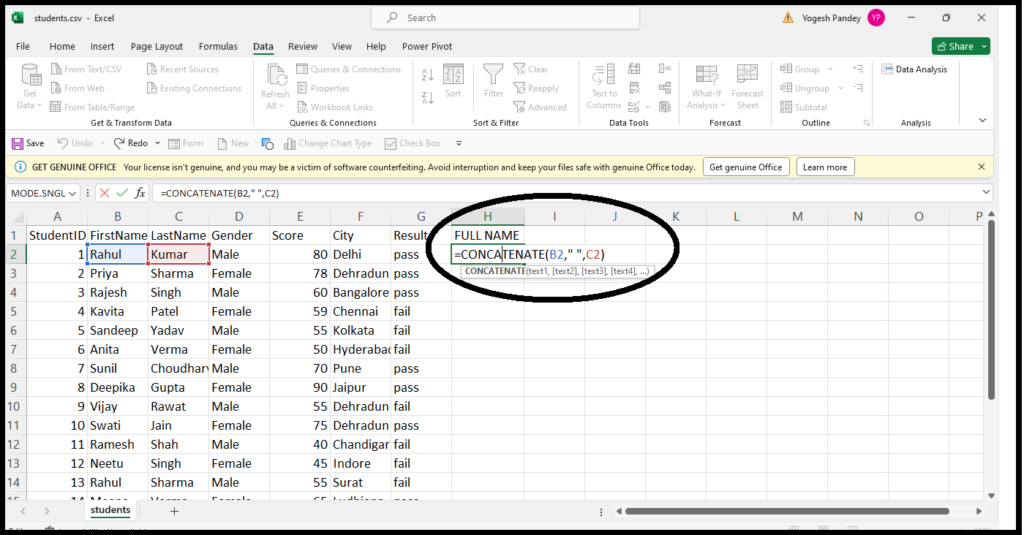
The CONCATENATE function in Excel is used to combine multiple strings or values into one single string. It is primarily used to concatenate, or join together, text from different cells or static text strings.
=CONCATENATE(text1, [text2], ...)
text1, text2, …: The text strings or cell references you want to concatenate.
Example: Suppose you have first name and last name in cells A1 and B1 respectively, and you want to concatenate them into one cell. You can use:
=CONCATENATE(A1, " ", B1)
This formula will combine the contents of cells A1 and B1, separated by a space, into one single string.
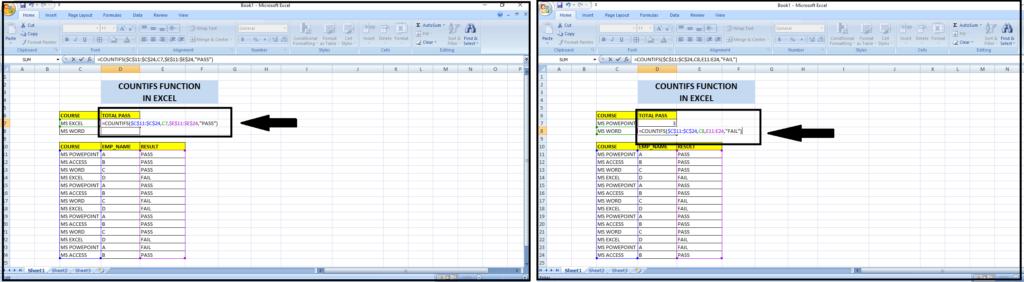
The purpose of the COUNTIFS function in Excel is to count the number of cells that meet multiple specified criteria across multiple ranges.
=COUNTIFS(criteria_range1, criteria1, [criteria_range2, criteria2], ...)
criteria_range1, criteria_range2, …: The ranges of cells to evaluate against their corresponding criteria.
criteria1, criteria2, …: The conditions or criteria that determine which cells to count.
Example: Suppose you have a dataset with sales data, and you want to count the number of sales where the product is “Apples” and the sales amount is greater than 100. You can use:
=COUNTIFS(A1:A10, "Apples", B1:B10, ">100")
This formula will count the number of cells in the range A1:A10 where the product is “Apples” and in the range B1:B10 where the sales amount is greater than 100.
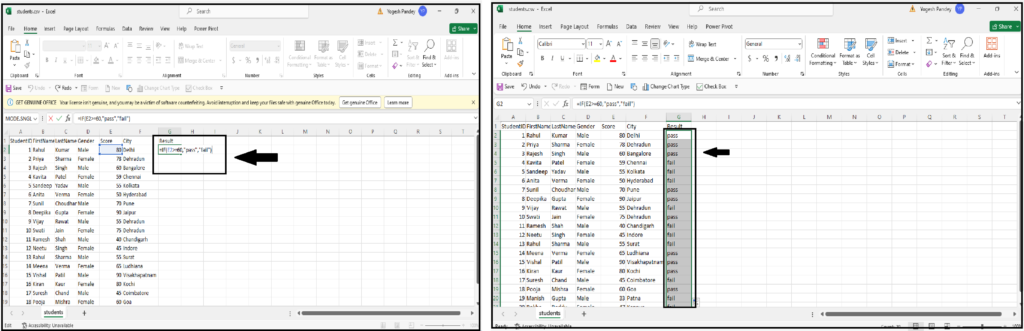
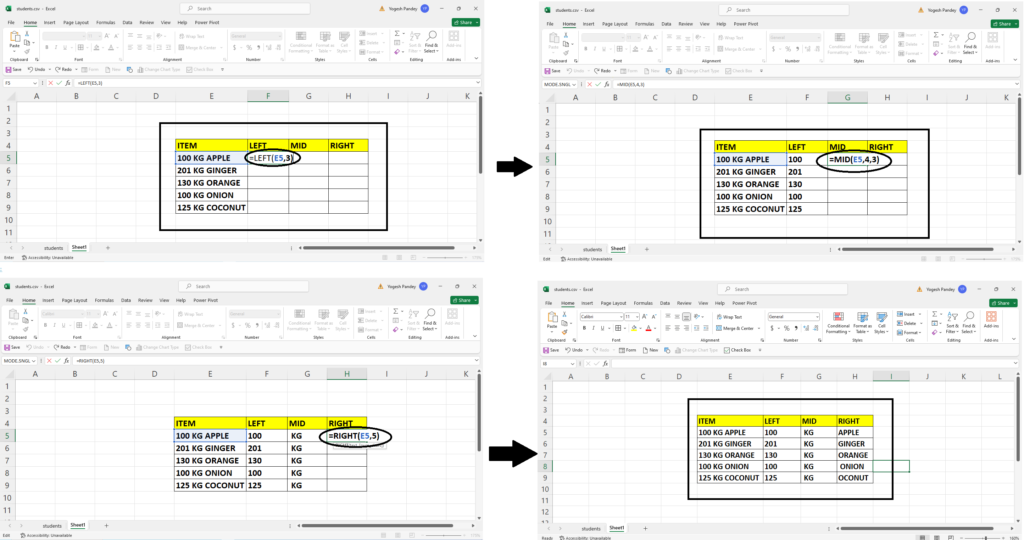
To create a formula in Excel, follow these general steps:
Select the Cell:
Start with an Equal Sign:
=) into the selected cell. This signals to Excel that you’re entering a formula.Enter the Formula:
+, -, *, /, and ^ for addition, subtraction, multiplication, division, and exponentiation respectively. You can also use built-in functions like SUM, AVERAGE, IF, etc.Press Enter:
Example: If you want to add the values in cells A1 and B1, you would follow these steps:
=A1+B1 into the cell.By following these steps, you can create and enter formulas in Excel to perform calculations and manipulate data according to your needs.
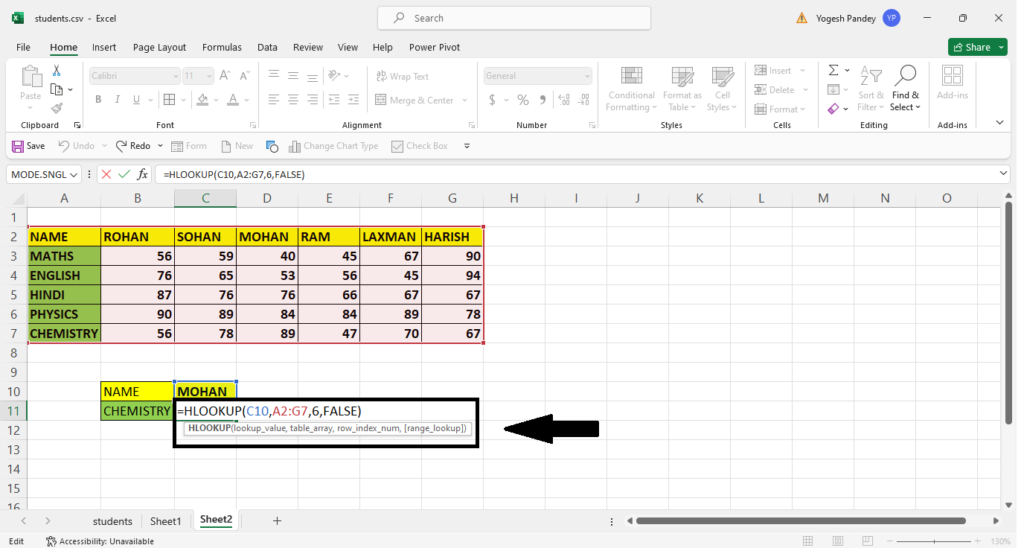
The purpose of the HLOOKUP function in Excel is to horizontally search for a value in the first row of a table or an array, and then return a value in the same column from a specified row number.
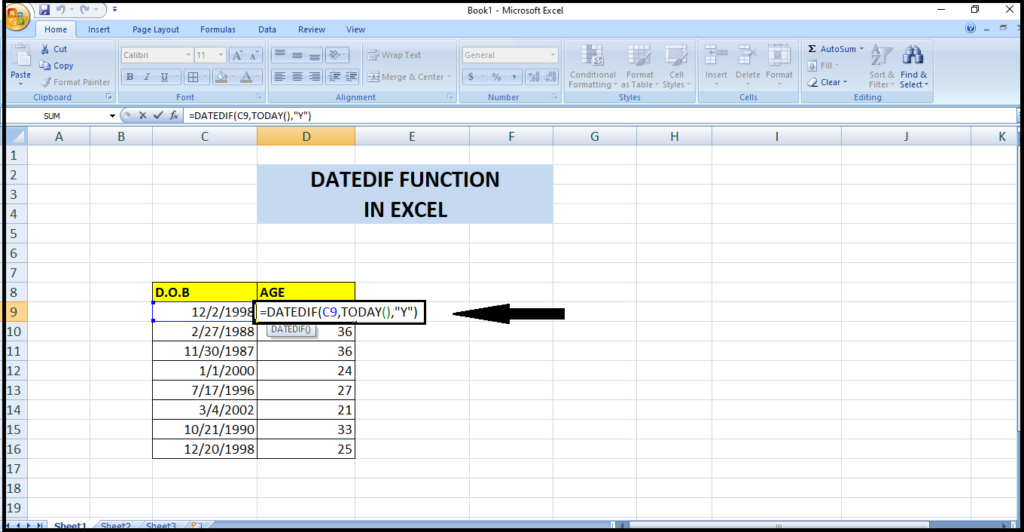
To calculate age based on the birthdate in Excel, you can use the following formula:
=DATEDIF(birthdate, TODAY(), "Y")
Replace “birthdate” with the cell reference containing the birthdate. This formula calculates the difference in years between the birthdate and the current date.
To calculate the standard deviation of a dataset in Excel, you can use the STDEV function. Here’s how to do it:
=STDEV( to start the function.) and press Enter.For example, if your data is in cells A1:A10, the formula would look like this: =STDEV(A1:A10). Excel will then calculate and display the standard deviation of the selected dataset.
Array formulas in Excel are formulas that perform multiple calculations on one or more items in an array. These formulas can return single or multiple results and are entered by pressing Ctrl + Shift + Enter instead of just Enter.
Here’s an example of an array formula:
Let’s say you have two columns of numbers in cells A1:A5 and B1:B5, and you want to calculate the sum of the products of corresponding numbers in each column.
You can use the following array formula to achieve this:
=SUM(A1:A5 * B1:B5)
After typing the formula, instead of pressing Enter, you press Ctrl + Shift + Enter. Excel will then calculate the sum of the products of the corresponding numbers in the two columns.
Common error types in Excel include:
To resolve these errors:
Additionally, using error-handling functions like IFERROR or IFNA can help manage errors by displaying custom messages or alternative values.
Certainly! The “AND” and “OR” functions in Excel are logical functions used to evaluate multiple conditions and return a TRUE or FALSE result based on the outcome of those conditions.
AND Function:
Syntax: =AND(condition1, [condition2], ...)Example: =AND(A1>10, B1<20, C1="Yes") returns TRUE only if cell A1 is greater than 10, cell B1 is less than 20, and cell C1 contains the text "Yes".2. OR Function:
Syntax: =OR(condition1, [condition2], ...)Example: =OR(A1="Yes", B1="Yes", C1="Yes") returns TRUE if at least one of the cells A1, B1, or C1 contains the text "Yes".In summary, “AND” evaluates all conditions and returns TRUE only if all conditions are met, while “OR” evaluates all conditions and returns TRUE if at least one condition is met.
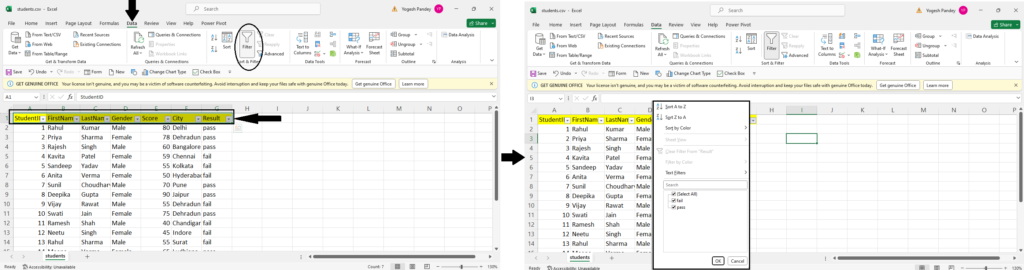
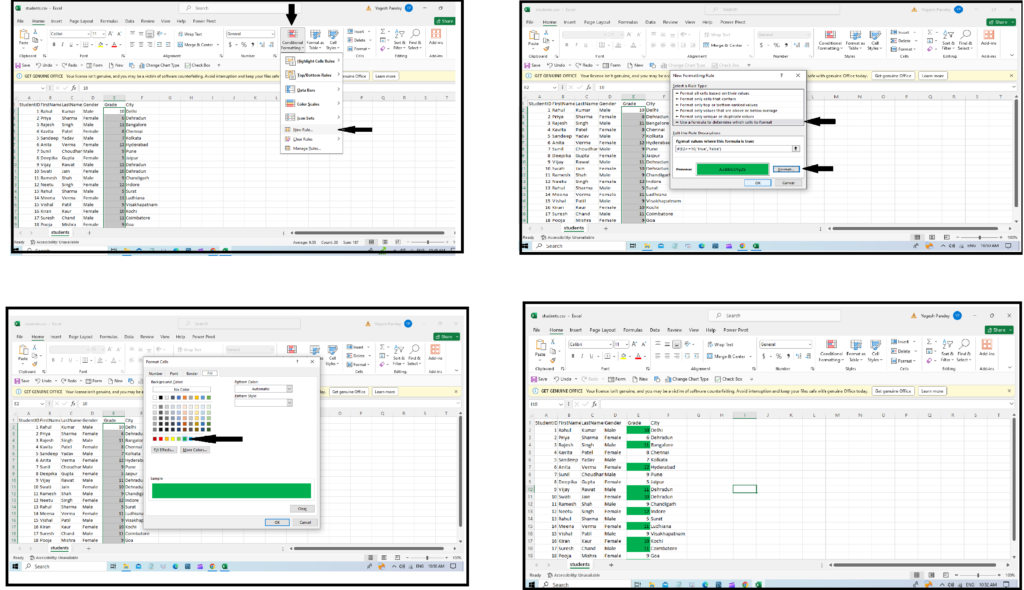
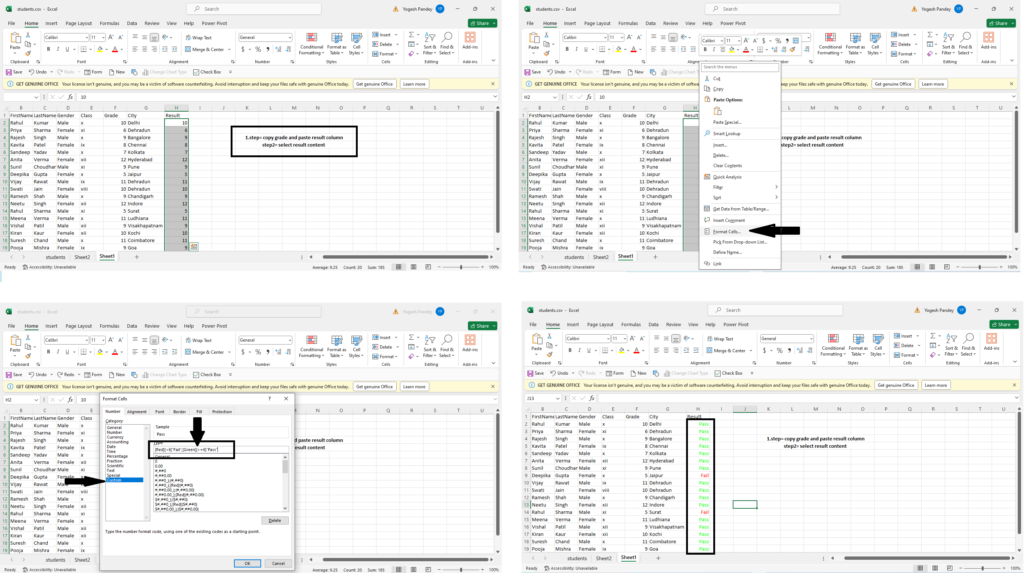
Conditional formatting is a feature in Excel that allows you to apply formatting (such as colors, icons, or data bars) to cells based on specified conditions. This feature helps to visually highlight important trends, patterns, or outliers within your data, making it easier to interpret and analyze.
Conditional formatting is useful in data analysis for several reasons:
Highlighting Key Data Points: You can use conditional formatting to highlight data points that meet certain criteria, such as values above or below a threshold, outliers, or specific text entries.
Identifying Trends and Patterns: By applying conditional formatting rules, you can quickly identify trends, patterns, or correlations in your data. For example, you can use color scales to visually represent the distribution of data values across a range.
Spotting Anomalies and Errors: Conditional formatting can help you identify anomalies or errors in your data, such as missing values, duplicates, or inconsistencies, by applying formatting that stands out from the rest of the data.
Improving Readability and Interpretation: By visually enhancing your data with conditional formatting, you can improve the readability and interpretation of your spreadsheets, making it easier for stakeholders to understand the insights and conclusions drawn from the data.
Conditional Formatting Based on Other Cells: You can also apply conditional formatting based on values in other cells, allowing you to create dynamic formatting that adjusts automatically as the underlying data changes.
Overall, conditional formatting is a powerful tool in data analysis that helps you visually explore and understand your data, identify important insights, and communicate findings effectively to others.
The FIND function in Excel is used to locate the position of a specific character or substring within a text string. Here’s how you use it:
Syntax: FIND(find_text, within_text, [start_num])find_text: The text you want to find within another text string.within_text: The text string in which you want to search for find_text.start_num (optional): The position in the within_text where you want to start searching. If omitted, the search starts at the beginning of the text.Example: Suppose you have the text string “apple pie” in cell A1, and you want to find the position of the space character. You would use the FIND function like this:
=FIND(" ", A1)This formula will return the position of the first space character in cell A1, which is 6 in this case.
You can also specify the start position from where you want to begin the search. For example:
=FIND("p", A1, 3)This formula will find the position of the letter “p” in the text string starting from the third character, returning 6.
To calculate compound interest in Excel, you can use the formula for compound interest, which is:
A=P×(1+r)n
Where:
In Excel, you can use the POWER function to raise (1 + r) to the power of n and then multiply it by the principal P to get the future value A.
Here’s how you can do it step by step:
=P*(1+r)^n in a cell to calculate the future value A, where P, r, and n are replaced with your values.For example, let’s say you have $1000 as the principal amount, an annual interest rate of 5% (0.05 in decimal), and the interest is compounded annually for 3 years. The formula in Excel would be:
=1000*(1+0.05)^3
This will give you the future value of the investment after 3 years with compound interest.
The RANK function in Excel is used to determine the rank of a specified value in a list of values. It assigns a rank to a value based on its position relative to other values in the list.
Syntax: RANK(number, ref, [order])number: The value for which you want to determine the rank.ref: A reference to the list of values in which you want to rank the specified number.order (optional): Specifies whether to rank the number in descending or ascending order. If omitted, the function ranks the number in descending order (largest value gets the highest rank).The RANK function returns the rank of the specified number within the list of values.
For example, if you have a list of numbers in cells A1:A10 and you want to find the rank of the number in cell B1 within that list, you would use the formula:
=RANK(B1, $A$1:$A$10)This formula would return the rank of the value in cell B1 relative to the values in cells A1:A10.
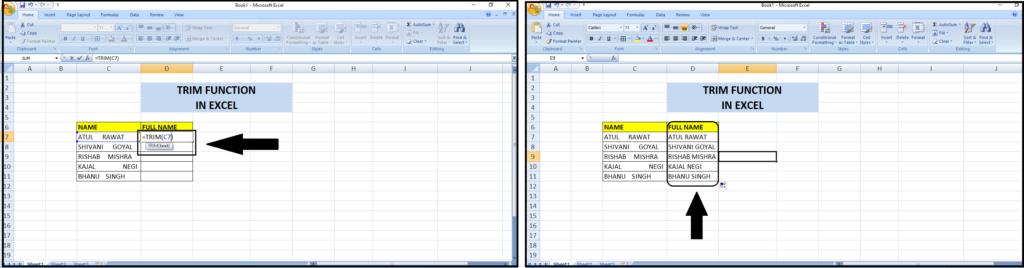
The TRIM function in Excel is used to remove extra spaces from text, specifically leading and trailing spaces, as well as multiple consecutive spaces between words.
Its primary purpose is to clean up text data by removing unnecessary spaces that can sometimes be inadvertently included, which may cause issues when performing comparisons or analysis.
Syntax: TRIM(text)text: The text string that you want to remove extra spaces from.For example, if you have a text string with extra spaces like ” example text “, using the TRIM function will result in “example text”, with only single spaces between words and no leading or trailing spaces.
=TRIM(" example text ")This function is particularly useful when dealing with imported data or user input, where extra spaces might be unintentionally included.
The PMT function in Excel is used to calculate the periodic payment for a loan or investment based on constant payments and a constant interest rate. It helps in determining the amount of regular payments needed to pay off a loan or investment over a specified period.
Syntax: PMT(rate, nper, pv, [fv], [type])rate: The interest rate per period.nper: The total number of payment periods.pv: The present value, or the initial principal amount of the loan or investment.fv (optional): The future value, or the desired balance after the last payment is made. If omitted, it defaults to 0.type (optional): The timing of payments: 0 for payments at the end of the period (default), or 1 for payments at the beginning of the period.The PMT function returns a negative value, representing the outgoing payment.
For example, if you have a loan of $10,000 with an annual interest rate of 5%, to be paid off in 5 years, the formula to calculate the monthly payment would be:
=PMT(5%/12, 5*12, 10000)This will give you the amount of the monthly payment required to pay off the loan over 5 years at an annual interest rate of 5%.
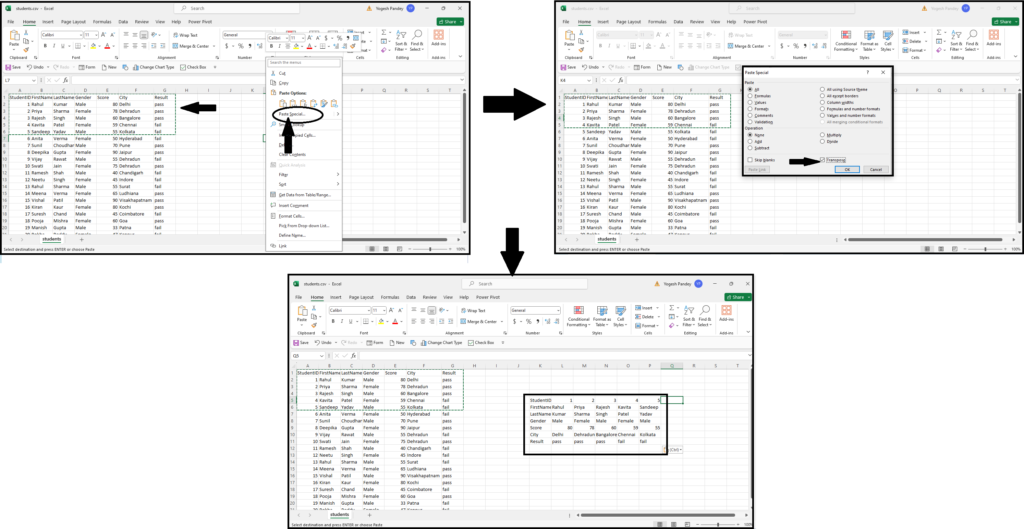
The purpose of the TRANSPOSE function in Excel is to transpose or switch the orientation of a range of cells or an array. In other words, it converts rows into columns and columns into rows.
Syntax: TRANSPOSE(array)array: The range of cells or array that you want to transpose.The TRANSPOSE function is useful when you need to reorganize data from a horizontal layout to a vertical layout or vice versa. It can be particularly handy when working with large datasets or when you need to perform calculations or analysis on data that is structured differently from what is required.
For example, if you have data arranged in rows and you want to switch it to columns, or if you have data arranged in columns and you want to switch it to rows, you can use the TRANSPOSE function to quickly achieve this transformation.
To remove leading and trailing spaces from a cell in Excel, you can use the TRIM function. TRIM removes extra spaces from text except for single spaces between words. Here’s how:
=TRIM(cell) where “cell” is the reference to the cell containing the text with leading and trailing spaces.For example, if you have text with leading and trailing spaces in cell A1, you would enter =TRIM(A1) in another cell, and Excel will display the text without the extra spaces.
You can also directly replace the original text with the trimmed text by copying the trimmed text and using “Paste Special” > “Values” to paste it over the original text. This will replace the original text with the trimmed text, removing the leading and trailing spaces.
A PivotTable is a powerful tool in Excel used for summarizing, analyzing, and presenting large datasets in a more manageable and understandable format. It allows you to quickly analyze and extract insights from large amounts of data by summarizing it into a concise and interactive table.
Here’s how you can use a PivotTable in Excel:
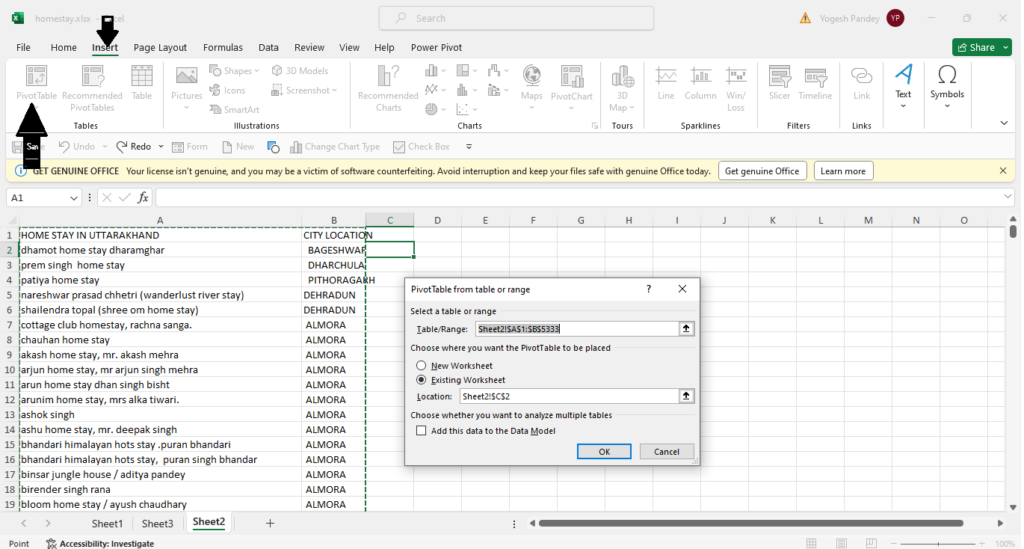
1. Select Your Data: Start by selecting the dataset that you want to analyze. Make sure it’s organized with headers for each column.
2. Insert PivotTable: Go to the “Insert” tab on the ribbon and click on “PivotTable”. Excel will prompt you to select the range of data for the PivotTable and where you want to place it (either in a new worksheet or an existing one).
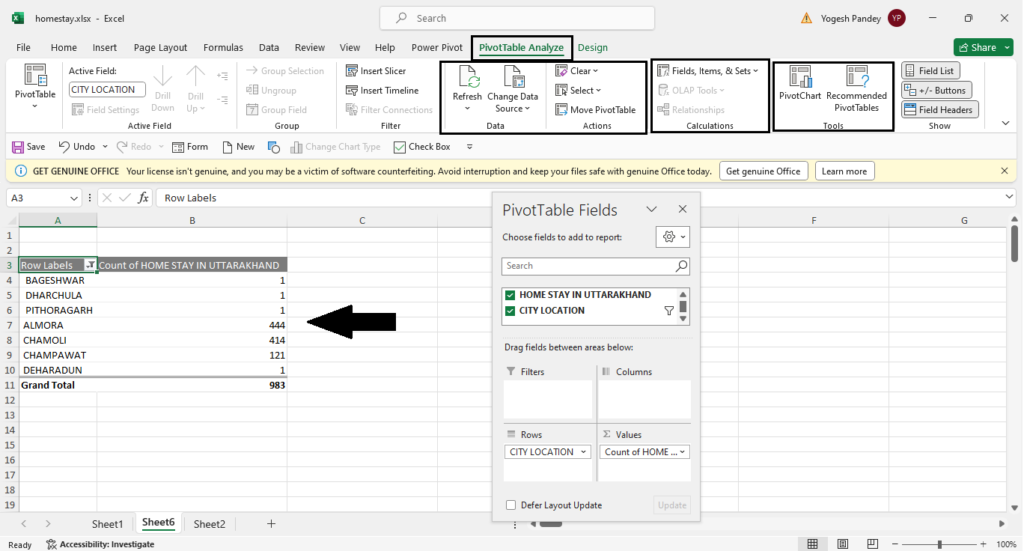
3. Design Your PivotTable: In the PivotTable Field List pane that appears on the right, you’ll see all the column headers from your dataset. Drag and drop the fields you want to analyze into the “Rows”, “Columns”, and “Values” areas of the PivotTable Field List to design your PivotTable.
4. Analyze Data: Once you’ve set up your PivotTable, Excel will automatically summarize your data based on the fields you’ve chosen. You can customize the summary by applying functions like sum, count, average, etc., to the values in the PivotTable.
5. Filter and Sort: You can easily filter and sort your data within the PivotTable to focus on specific subsets or trends within your dataset.
6. Refresh Data: If your original dataset changes, you can refresh the PivotTable to reflect the updated data. Right-click on the PivotTable and select “Refresh”.
7. Format and Customize: You can format the PivotTable to make it visually appealing and easier to understand. You can also customize the layout and appearance of the PivotTable using Excel’s formatting options.
Overall, PivotTables are incredibly useful for quickly summarizing and analyzing large datasets, identifying trends and patterns, and gaining valuable insights from your data.
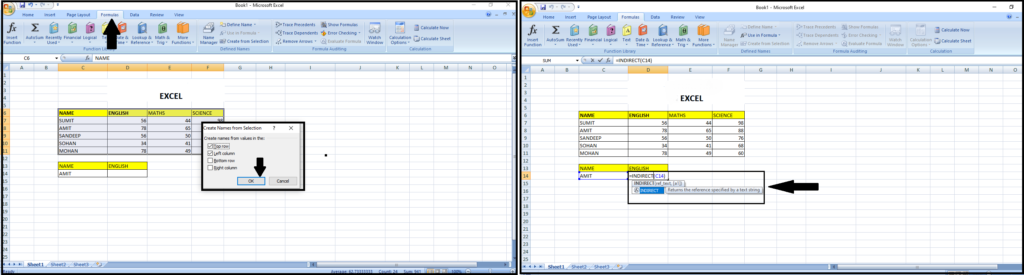
The INDIRECT function in Excel is used to convert a text string into a cell reference or range reference. Its primary purpose is to allow users to create dynamic references to cells or ranges based on the contents of other cells.
Syntax: INDIRECT(ref_text, [a1])ref_text: The text string representing the cell reference or range reference.[a1]: Optional. A logical value that specifies the reference style to use: TRUE (default) for A1-style reference or FALSE for R1C1-style reference.The INDIRECT function is particularly useful in scenarios where you need to dynamically refer to different cells or ranges based on changing criteria or conditions. It allows for the creation of dynamic formulas and data manipulation techniques such as data validation, conditional formatting, and lookup functions.
For example, you can use INDIRECT to create a dynamic lookup formula that refers to a different table based on the selection made in another cell. Or, you can use it to dynamically refer to cells in different worksheets or workbooks based on specific criteria.
To calculate the percentage change between two values in Excel, you can use the following formula:
Percentage Change=(New Value−Old Value/Old Value)×100%Here’s how you can implement it in Excel:
In Excel, the formula would look like this:
Percentage Change=(New Value−Old Value/Old Value)×100%For example, if the old value is in cell A1 and the new value is in cell A2, the formula in Excel would be:
(A1-A2/A1)×100
This formula will calculate the percentage change between the two values and display the result as a percentage.